Color plays a major role in how a design is perceived. On a screen, colors often look bright, sharp, and full of life. But when the same design is printed, those colors can suddenly feel muted or different. This shift surprises many beginners and even experienced designers. The main reason behind this change is the difference between RGB and CMYK color models.
Understanding RGB to CMYK conversion is not just a technical skill—it’s a practical necessity for anyone working with print materials such as flyers, brochures, banners, packaging, or business cards.
Why Colors Change from Screen to Print
Screens and printers work in completely different ways. A screen produces color using light, while a printer creates color using ink on paper. Because of this difference, some colors that look amazing on a digital display simply cannot be reproduced exactly in print.
For example, bright blues, neon greens, and glowing reds often lose their intensity when converted to CMYK. This doesn’t mean your design is bad—it simply means the printer has physical limitations.
That’s why learning how RGB and CMYK work helps you design smarter from the beginning.
What Is RGB and Where Is It Used?
RGB stands for Red, Green, and Blue. This color model is used for all digital screens, including:
- Websites
- Mobile apps
- Social media graphics
- Digital ads
- Videos and presentations
RGB is an additive color model, meaning colors are created by adding light. When red, green, and blue light are combined at full strength, the result is white. When there is no light, the result is black.
This system is perfect for digital work—but not for printing.
What Is CMYK and Why Printers Use It
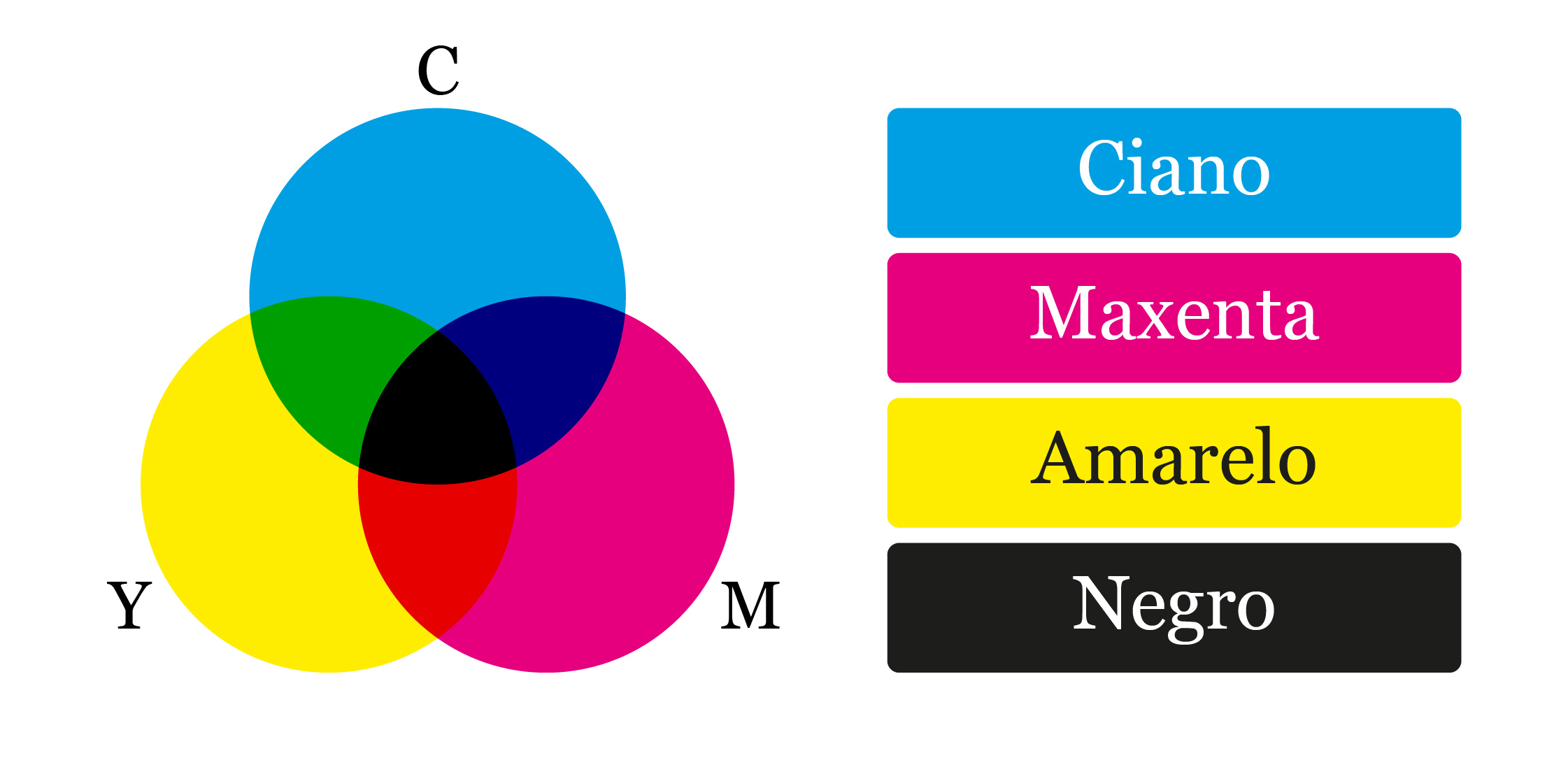
CMYK stands for Cyan, Magenta, Yellow, and Black (Key). Printers use CMYK because ink absorbs light rather than emitting it.
CMYK is a subtractive color model:
- White comes from the paper itself
- Colors are created by subtracting light using ink
- Black ink is added separately to improve depth and detail
Almost all commercial printers—offset and digital—require files in CMYK format.
Why RGB to CMYK Conversion Is Necessary
Designers usually create artwork on screens using RGB. However, printers cannot understand RGB values. If a file is sent to print without conversion, the printer will automatically convert it, often producing unpredictable results.
Converting RGB to CMYK manually or using proper tools helps:
- Maintain better color consistency
- Reduce unexpected dullness
- Avoid customer complaints
- Save money on reprints
In short, conversion gives you control over your final output.
How RGB to CMYK Conversion Works (In Simple Terms)
While the math behind conversion can be complex, the idea is simple: RGB values are translated into ink percentages that printers can use.
Step 1: Normalize RGB Values
RGB values range from 0 to 255. These are converted into decimals between 0 and 1.
Example:
RGB (100, 200, 50)
- R ≈ 0.39
- G ≈ 0.78
- B ≈ 0.20
Step 2: Calculate the Black (K) Value
Black ink is calculated using the darkest color value.
Formula:
K = 1 − max(R, G, B)
Result:
- K ≈ 0.22
Black ink helps improve shadows and reduces excess ink usage.
Step 3: Calculate Cyan, Magenta, and Yellow
After calculating black, the remaining values are converted into CMY percentages.
Final output (approximate):
- Cyan: 50%
- Magenta: 0%
- Yellow: 75%
- Black: 22%
This gives a print-friendly version of the original RGB color.
Common RGB to CMYK Color Conversions
Here are a few basic examples designers often work with:
- Red (255, 0, 0)
C: 0% | M: 100% | Y: 100% | K: 0% - Green (0, 255, 0)
C: 100% | M: 0% | Y: 100% | K: 0% - Blue (0, 0, 255)
C: 100% | M: 100% | Y: 0% | K: 0% - Yellow (255, 255, 0)
C: 0% | M: 0% | Y: 100% | K: 0% - White (255, 255, 255)
C: 0% | M: 0% | Y: 0% | K: 0%
These examples show how vibrant screen colors are translated into printable ink values.
Real-World Challenges Designers Face
Even after proper conversion, colors may still look slightly different due to:
- Paper quality (glossy vs matte)
- Printer calibration
- Ink brand and density
- Lighting conditions
This is why professional designers always recommend proof printing before final production.
Best Practices for Accurate Print Colors
To achieve the best results:
- Design with CMYK in mind if the final output is print
- Avoid extremely bright RGB-only colors
- Use soft-proofing features in design software
- Always test print critical designs
- Communicate with your printer about color profiles
These small steps can make a huge difference in print quality.
Final Thoughts
RGB to CMYK conversion is more than a technical requirement—it’s a bridge between digital creativity and physical reality. When designers understand how colors behave in both environments, they gain better control over their work and deliver more professional results.
By planning ahead, converting colors properly, and testing prints, you can ensure your designs look consistent, polished, and visually appealing—both on screen and on paper.